JPG to XLS or XLSX: Convert a JPG Image into an Editable Spreadsheet
Learn the difference between JPG to XLS, JPG to XLSX, and JPG to Excel file conversion. Convert JPG images into editable spreadsheet cells instead of pasting pictures into Excel.
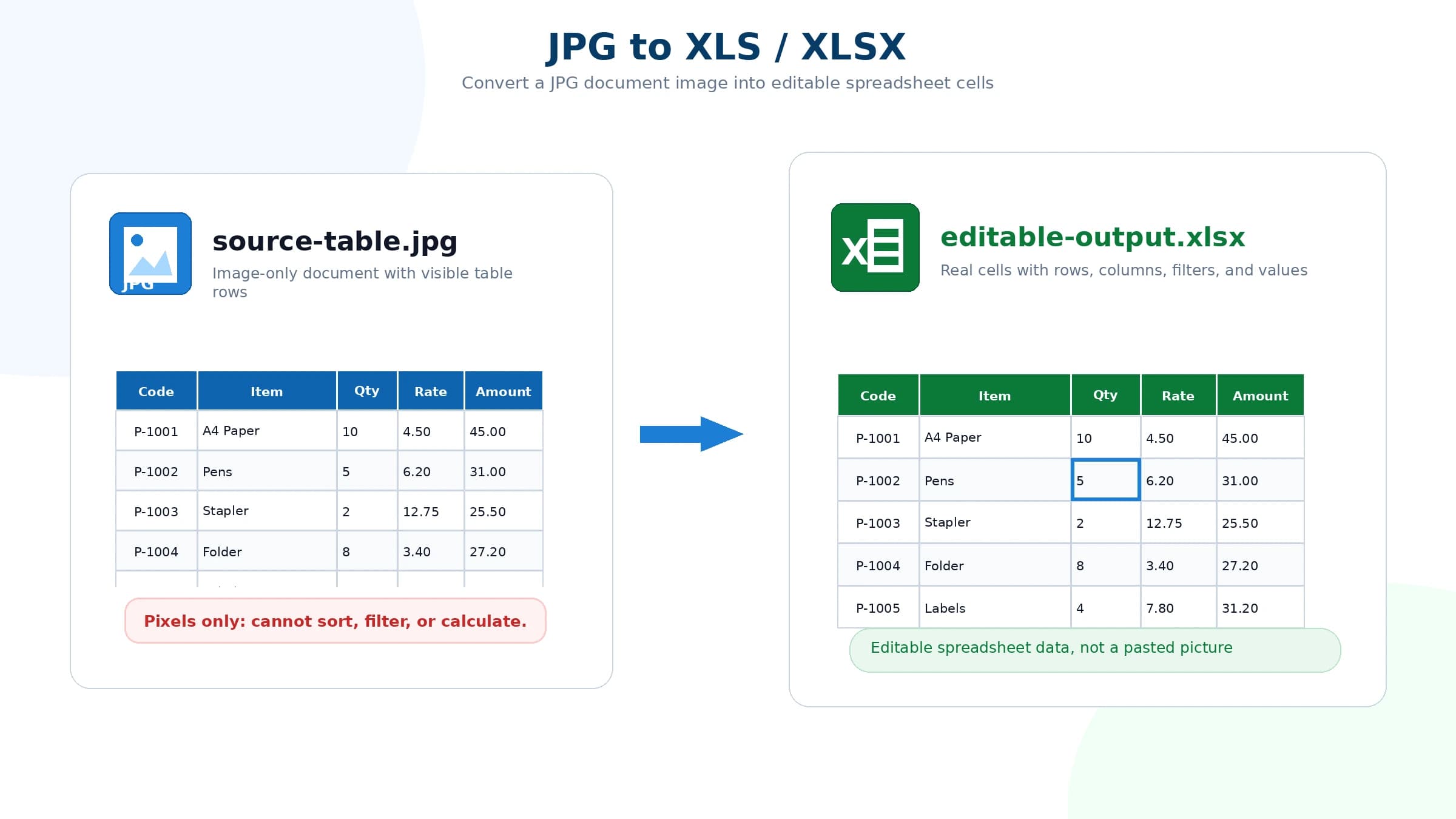
A JPG file is an image. An XLS or XLSX file is a spreadsheet. That difference matters.
If you simply insert a JPG into Excel, you only get a picture inside a worksheet. You can resize it, move it, or print it, but you cannot sort rows, filter columns, calculate totals, copy cell values, or clean the data.
A real JPG to XLS or JPG to XLSX conversion means something different: the text and numbers inside the image are extracted and rebuilt as editable spreadsheet cells. This is useful when you need a spreadsheet you can edit, sort, filter, and calculate instead of a workbook that only contains a pasted image.
This guide explains the difference between XLS and XLSX, what an online JPG to XLS converter should produce, how to check whether the output is truly editable, and which source images give the cleanest spreadsheet file.
For step-by-step upload, OCR preview, and download instructions, follow the how to convert JPG to Excel tutorial.
JPG to XLS vs JPG to XLSX
Both XLS and XLSX are Excel spreadsheet formats, but they are not the same.
XLS is the older Excel format used by legacy versions of Microsoft Excel. Some older office systems, accounting workflows, and internal tools still ask for XLS files.
XLSX is the newer Excel format. It is more common today and works well with Microsoft Excel, Google Sheets, Apple Numbers, LibreOffice, and most modern spreadsheet tools.
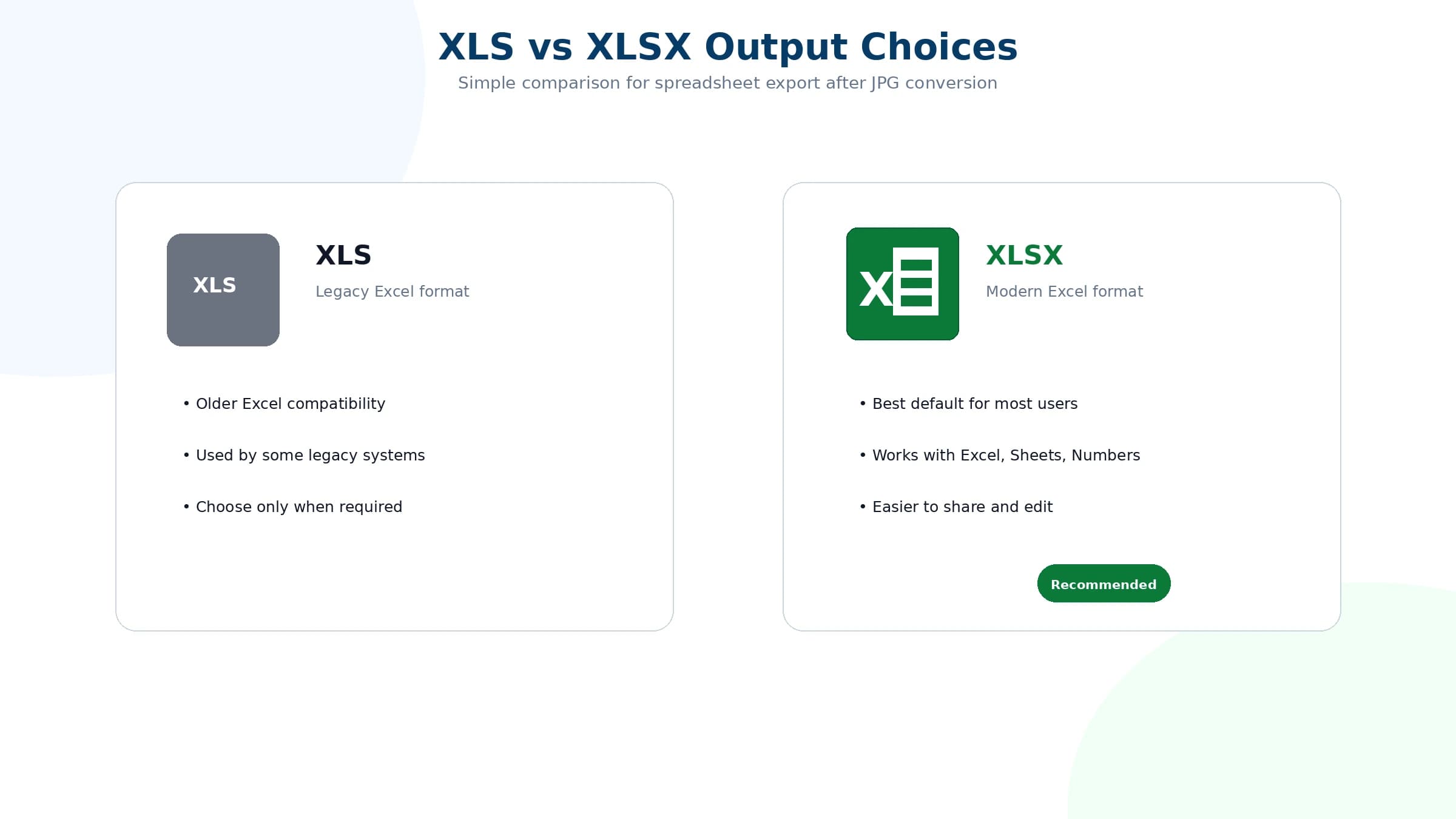
For most users, XLSX is the better choice. It is widely supported, easier to share, and better suited for modern spreadsheet data. Use XLS only when a specific system or older version of Excel requires it.
What does "convert JPG to XLS online" really mean?
When users search for "convert JPG to XLS online," they usually do not want a JPG pasted into an Excel workbook. They want the visible information inside the image to become usable data.
For example, a JPG might contain:
- A product price list
- A scanned delivery order
- An inventory count sheet
- A bank statement table
- A screenshot of a spreadsheet
- A photographed printed report
- A supplier quotation with item rows
After conversion, the output should be an Excel file where each value sits in a cell. Product names should appear in one column, quantities in another column, prices in another, and totals in their own cells.
That is the difference between an image stored in Excel and an editable Excel spreadsheet.
Why OCR is needed before a JPG can become Excel
Excel cannot understand the text inside a JPG by itself. A JPG is made of pixels, not rows and columns.
To convert JPG to XLS or XLSX, an OCR process is needed. OCR reads the image, detects text, recognizes numbers, and tries to rebuild the table layout.
For spreadsheet conversion, OCR has two jobs:
- Recognize the text and numbers
- Preserve the relationship between rows and columns
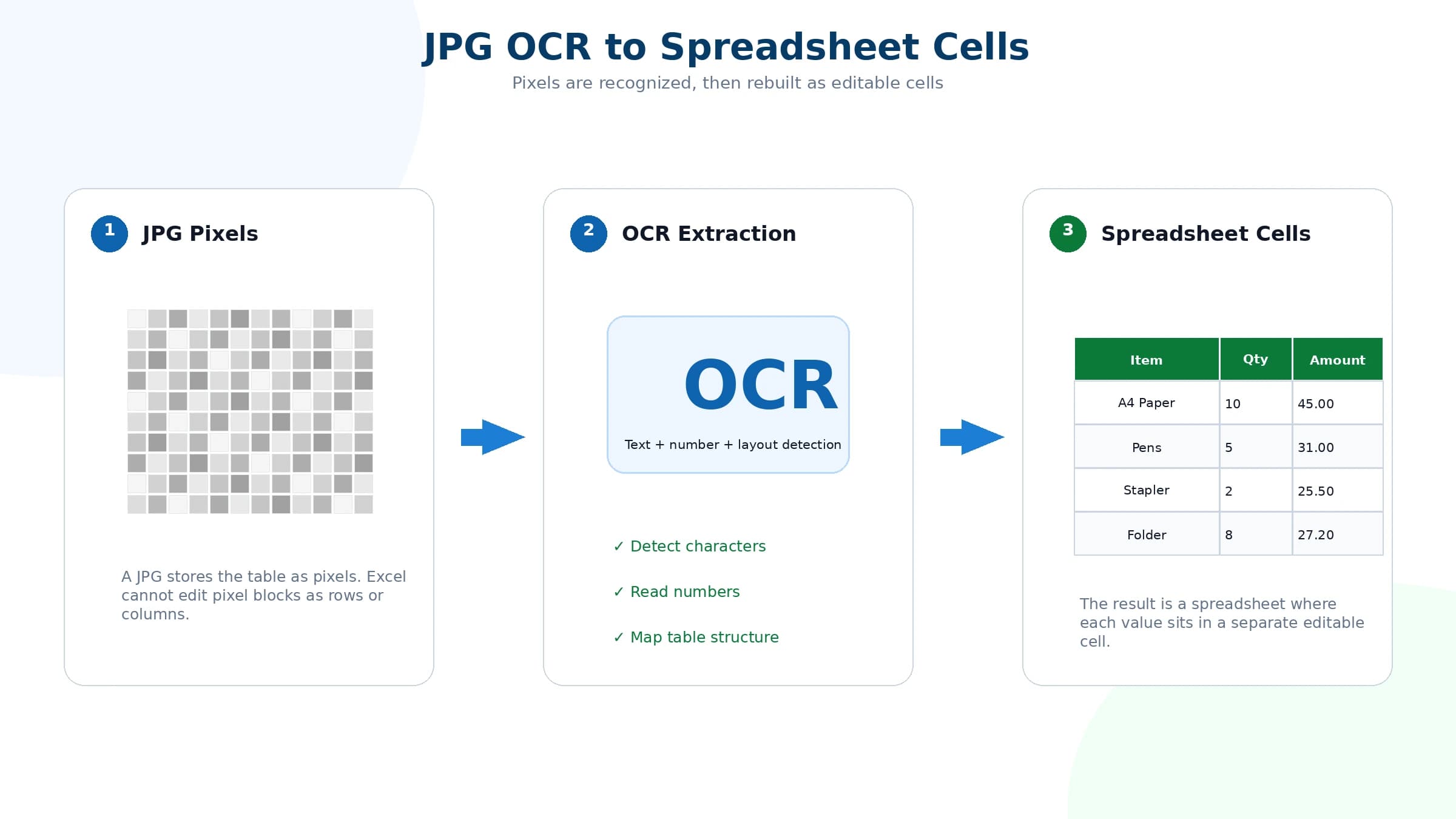
The second part is especially important. If a converter extracts all text but loses the table structure, the result may still need a lot of manual cleanup. A useful JPG to Excel converter should create a spreadsheet that keeps headers, rows, columns, and line items as clearly as possible.
How to convert JPG to XLS or XLSX online
The basic process is simple, but each step affects the final file quality.
1. Upload the JPG file
Start with the clearest version of the image. If the JPG came from a phone photo, crop away the background and keep the document flat. If it came from a screenshot, use the original screenshot instead of a compressed copy from chat.
A clear source image usually gives a better spreadsheet file. Avoid screenshots of screenshots, dark photos, and images where the table is cut off at the edge.
2. Let OCR extract the spreadsheet data
The converter reads the image and detects the table. It looks for text blocks, numbers, grid lines, spacing, and row alignment.
This is where a JPG image starts becoming an Excel file instead of staying a picture.
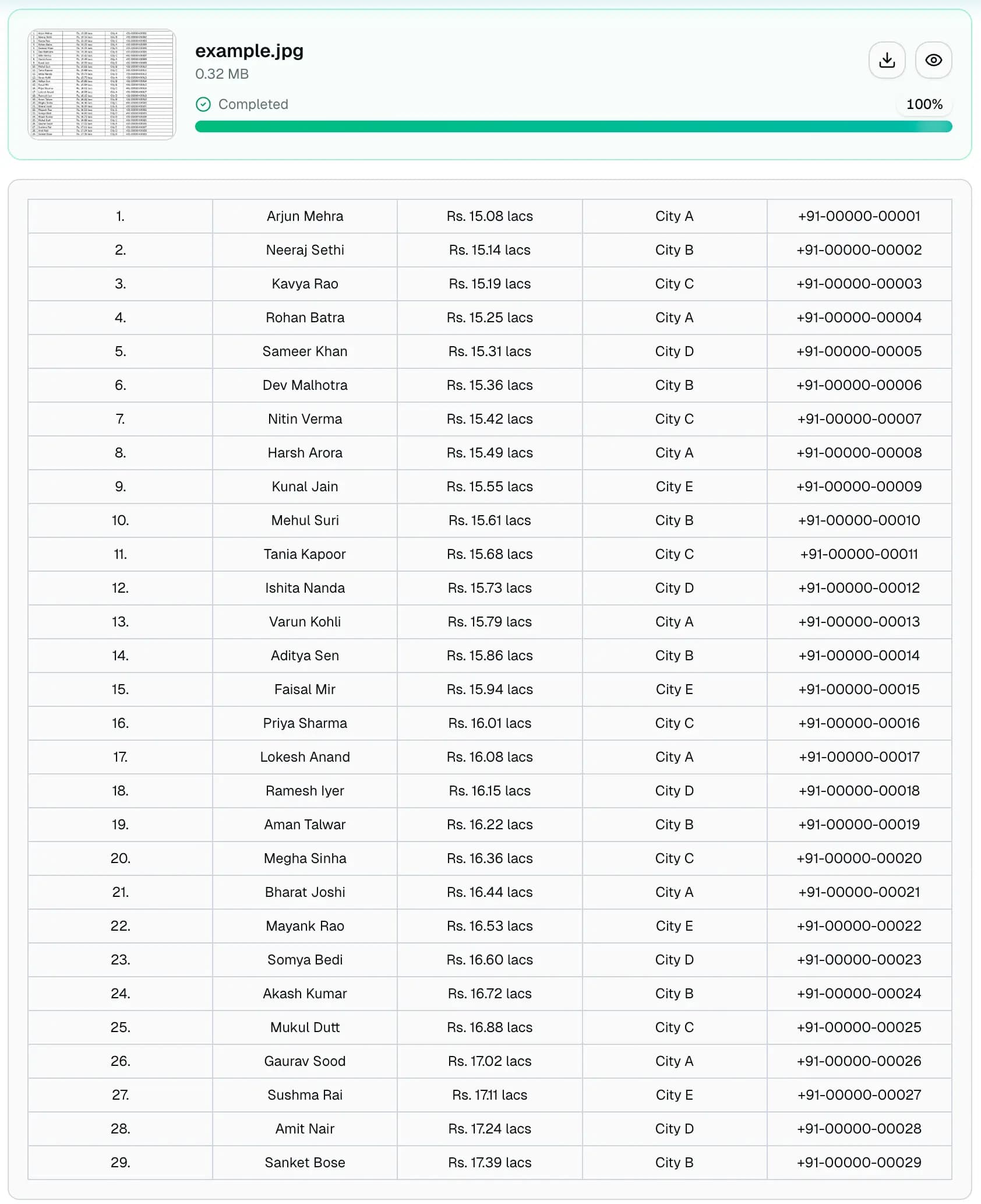
3. Preview the result
Before downloading the output, review the extracted data. Check whether columns are separated correctly and whether important numbers were read accurately.
Pay attention to:
- Decimal points
- Dates
- Currency values
- Product codes
- Long descriptions
- Merged or wrapped headers
- Totals and subtotals
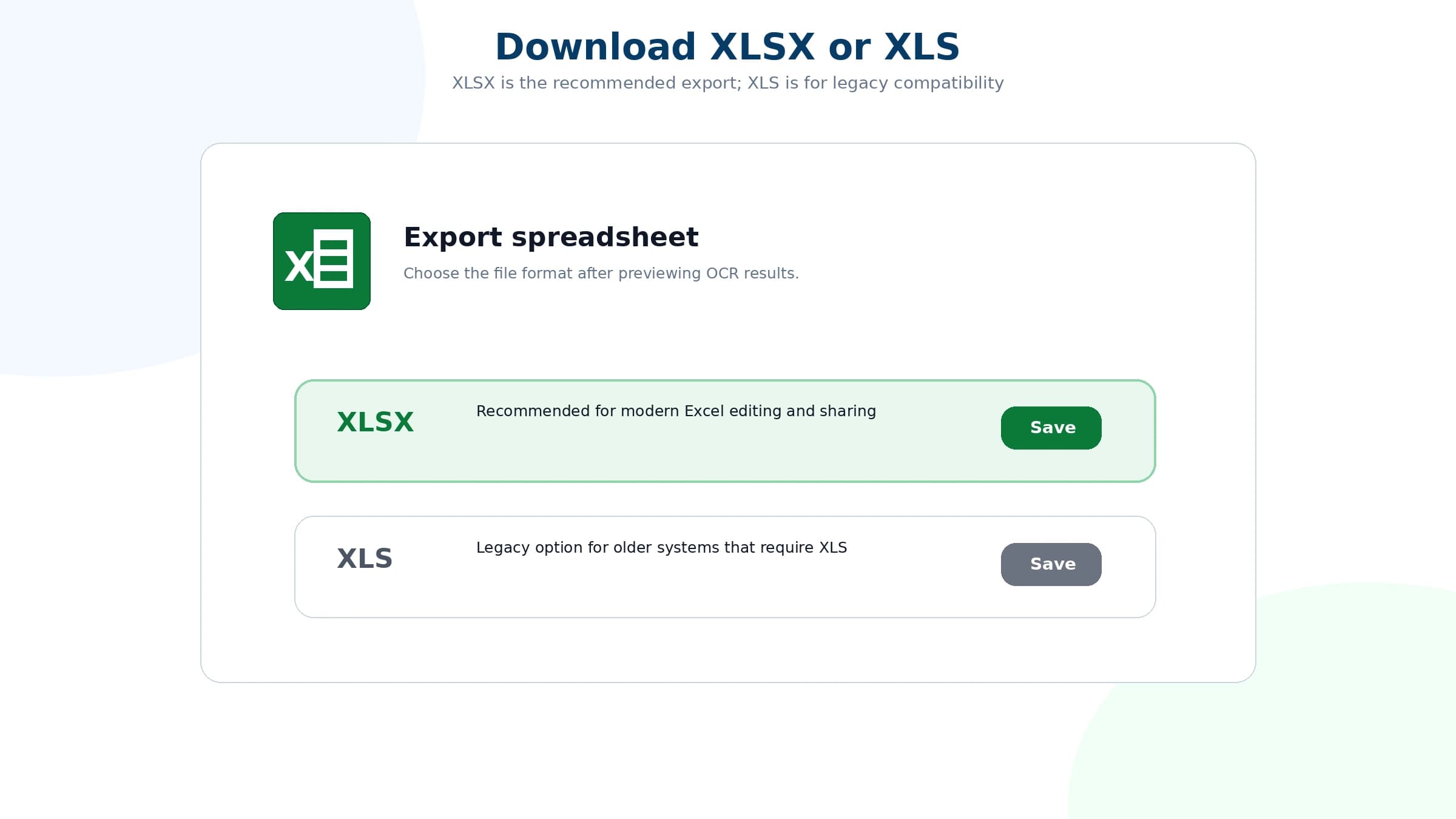
4. Download XLSX or XLS
If you only need a modern editable spreadsheet, choose XLSX. If an older system specifically asks for XLS, choose XLS when available.
After downloading, open the file in Excel or Google Sheets and check that the data is editable cell by cell.
How to tell if the output is truly editable
A proper JPG to Excel file should let you click individual cells and edit the values.
You should be able to:
- Select one cell at a time
- Copy a column of values
- Sort rows
- Apply filters
- Change headers
- Add formulas
- Delete extra rows
- Save the file as XLSX, XLS, or CSV
If clicking the worksheet only selects one large image, the JPG was inserted into Excel, not converted into editable spreadsheet data.
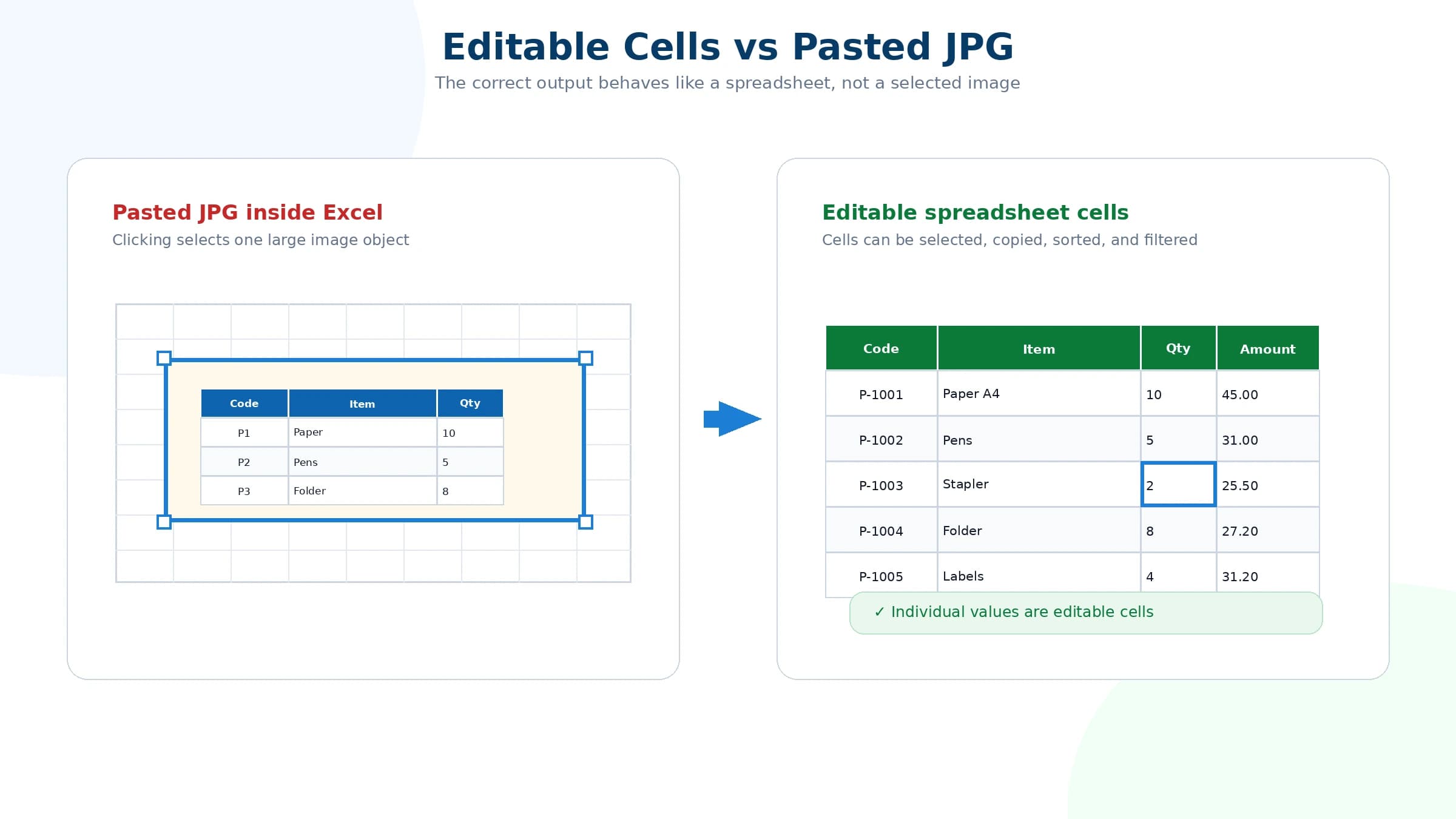
This is one of the most common problems with low-quality JPG to Excel conversion. The file may have an Excel extension, but the content is still just a picture.
Which JPG files convert best?
JPG to XLS conversion works best when the image is clear, straight, and high enough resolution.
Good source files include:
- Screenshots of tables
- Scanned forms with printed text
- Photos of clean printed reports
- Product lists with visible columns
- Inventory sheets with consistent rows
- Invoices and delivery orders with line-item tables
Difficult files include:
- Blurry photos
- Cropped tables with missing columns
- Skewed camera angles
- Heavy shadows or glare
- Very small text
- Handwritten corrections
- Compressed chat images
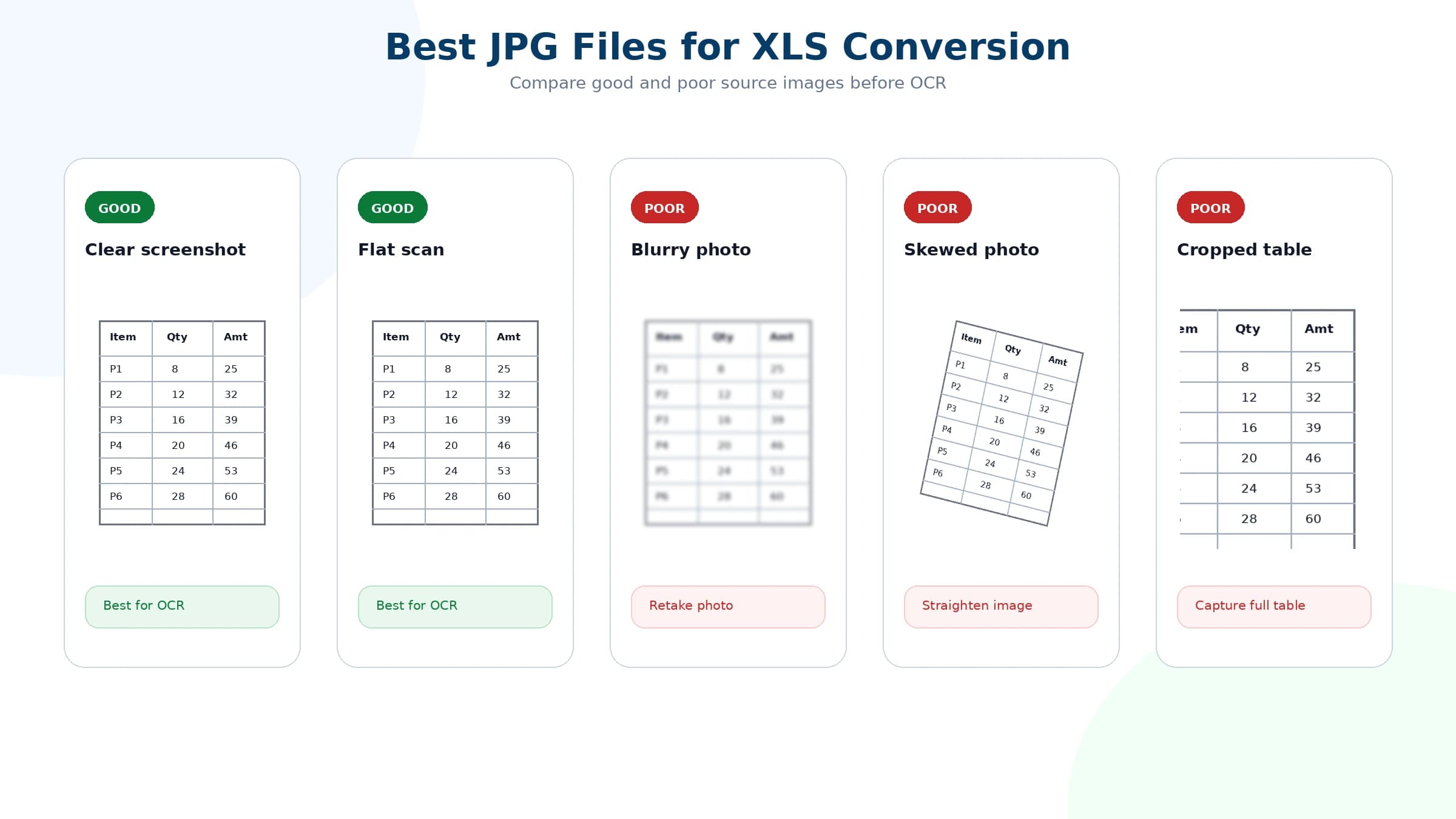
If the spreadsheet result is messy, the first thing to improve is usually the image quality. Retake the photo, crop closer to the table, increase brightness, or use a direct screenshot when possible.
JPG to Excel sheet vs JPG to Excel file
These phrases are often used interchangeably, but they can imply slightly different needs.
"JPG to Excel sheet" usually means the user wants the data placed into a worksheet with rows and columns.
"JPG to Excel file" usually means the user wants a downloadable XLS or XLSX file.
"JPG to Excel spreadsheet" is broader. It usually means the final result should behave like a normal spreadsheet, not just a document preview.
A good online JPG to XLS converter should satisfy all three: it should extract the data, place it into a usable sheet, and let you download a real Excel file.
Should you choose XLS, XLSX, or CSV?
Choose XLSX for most cases. It is the best default for modern Excel work.
Choose XLS if you need compatibility with older software or a system that specifically rejects XLSX.
Choose CSV only when you need plain row-and-column data without formatting, multiple sheets, formulas, or workbook features.
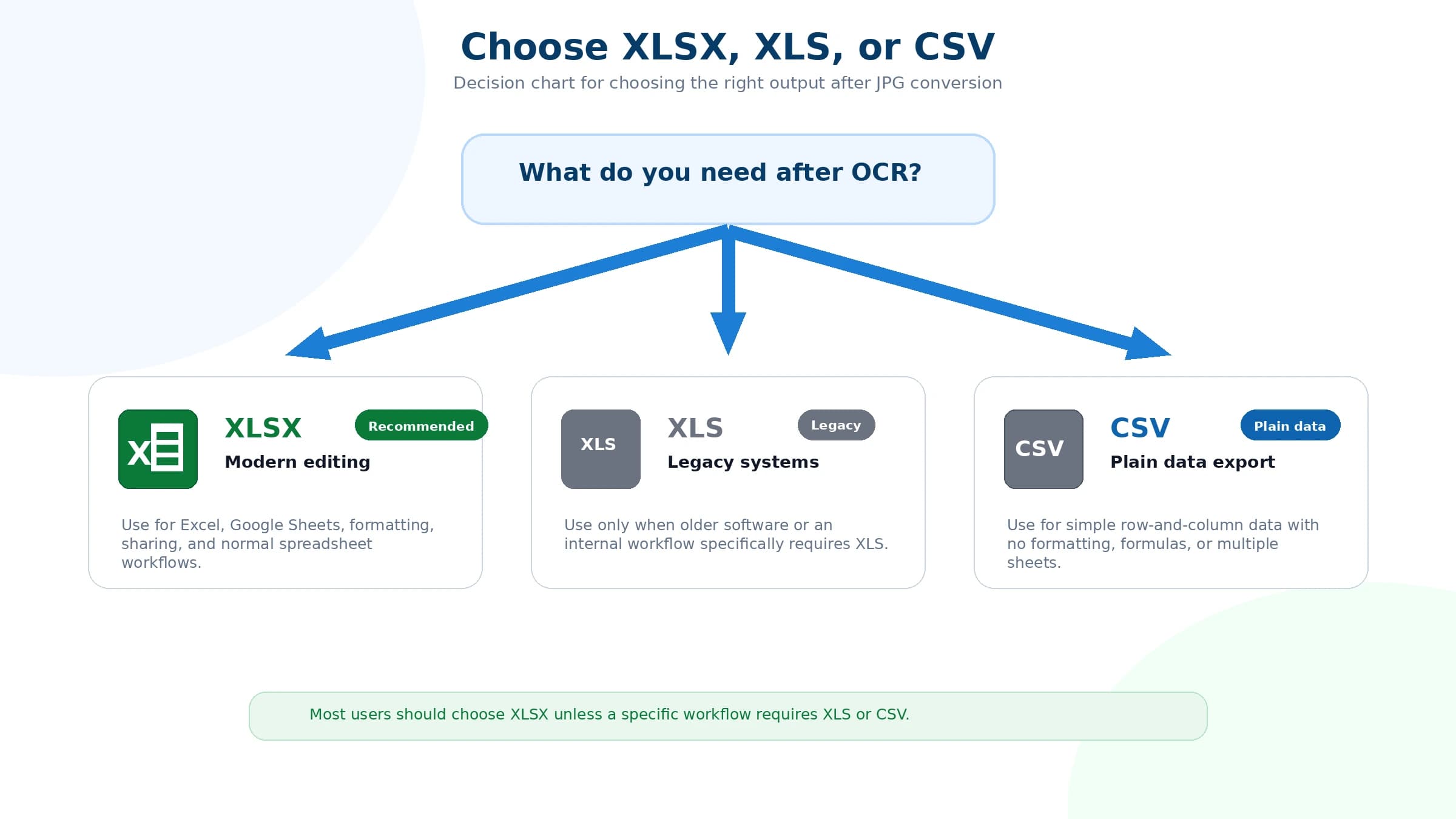
For table images, XLSX is usually the most practical format because it keeps spreadsheet structure while remaining easy to edit.
Common mistakes when converting JPG to an Excel file
Mistake 1: Inserting the JPG into Excel
This creates an Excel file, but it does not create editable spreadsheet data. The result may look correct at first, but it will not behave like a spreadsheet.
Mistake 2: Using a low-resolution image
Small or compressed JPG files often lose the details needed for OCR. If numbers are hard for a person to read, they will also be hard for OCR.
Mistake 3: Ignoring decimal points and dates
Financial and inventory files often depend on exact numbers. Always check decimal points, date formats, and totals before using the file for reporting or accounting.
Mistake 4: Expecting formulas to be recovered
A JPG image does not contain real formulas. OCR can extract visible text and numbers, but formulas must be added again in Excel after conversion.
Mistake 5: Uploading sensitive files without review
Many JPG files include private or business-critical information. Check what is visible before uploading.
Privacy tips before uploading JPG files
Many JPG files contain sensitive business or personal information. Before using any online JPG to Excel converter, check whether the image includes:
- Customer names
- Phone numbers
- Addresses
- Account numbers
- Bank transactions
- Internal prices
- Employee data
- Identity numbers
- Confidential supplier information
If the image is sensitive, redact unnecessary information before uploading or use sample data for public examples.
FAQ
Can I convert JPG to XLS online?
Yes. If the JPG contains readable text or a table, OCR can extract the data and create an XLS or XLSX spreadsheet.
Is JPG to XLS the same as JPG to XLSX?
No. XLS is the older Excel format, while XLSX is the modern Excel format. Most users should choose XLSX unless they need older Excel compatibility.
Why did my Excel file only contain an image?
That means the JPG was inserted into Excel instead of being converted with OCR. A real JPG to Excel conversion should create editable cells.
Can I convert a JPG to an Excel sheet?
Yes. A JPG with a clear table can be converted into an Excel sheet with rows and columns.
Is XLSX better than XLS?
For most modern workflows, yes. XLSX is newer, widely supported, and better for sharing editable spreadsheet data.
Can a JPG to Excel converter keep formulas?
No. A JPG image does not contain real formulas. OCR can extract visible numbers and text, but formulas must be added again in Excel after conversion.
Convert a JPG into an Excel file
Upload a clear JPG, preview the extracted rows and columns, and download an editable Excel spreadsheet. Use XLSX for most modern spreadsheet work unless an older workflow specifically requires another format.