How to Save Images as JPEG Instead of JFIF
Save browser images as JPG or JPEG instead of JFIF. Fix repeated JFIF downloads on Windows and batch convert files you already downloaded.
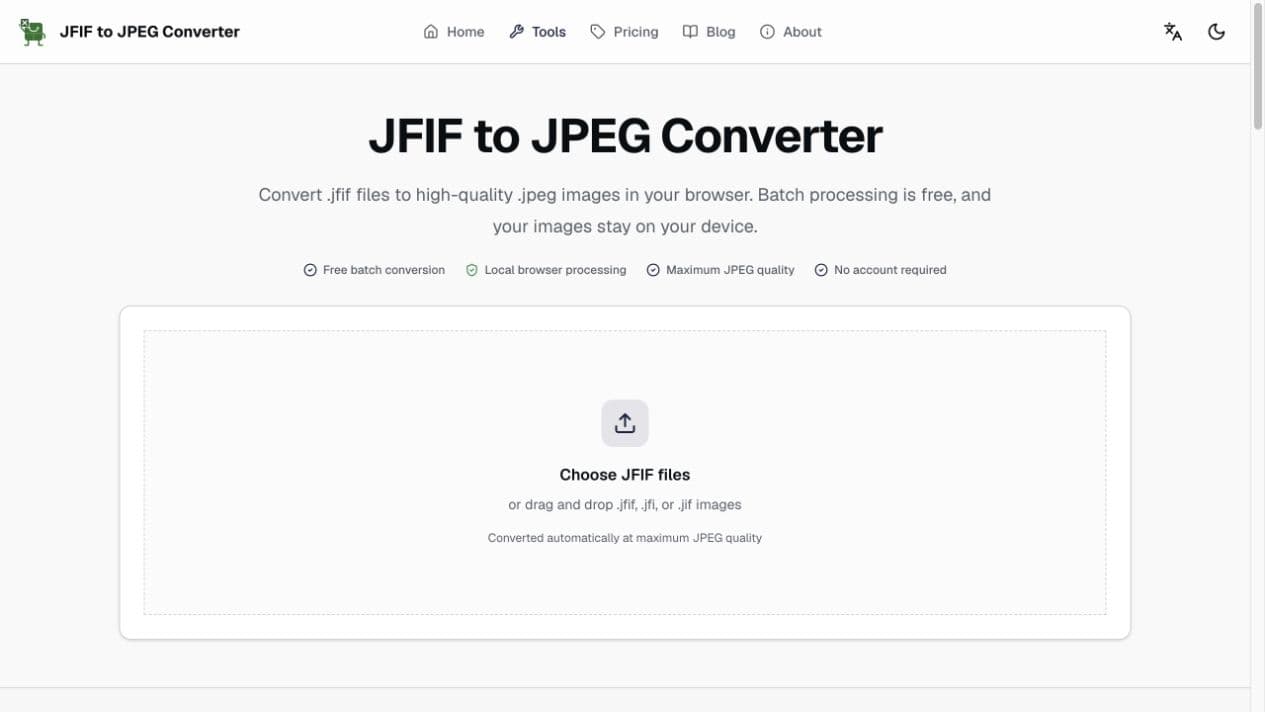
To save an image as JPEG instead of JFIF, give the download a .jpg or .jpeg filename in the Save As dialog. If the website or Windows keeps restoring the .jfif extension, convert the downloaded file into a fresh JPEG instead of changing the name repeatedly.
JFIF is closely related to JPEG, so the image is not necessarily damaged. The practical problem is compatibility: an upload form, editor, messaging app, or document workflow may accept .jpg and .jpeg but reject .jfif.
Already have several JFIF files?
Use the free JFIF to JPEG converter to create maximum-quality .jpeg copies locally in your browser.
Choose the right fix for your situation
The best method depends on whether you are saving one new image, fixing files you already have, or correcting a repeated Windows behavior.
| Situation | Best first step | Why |
|---|---|---|
| One image is still in the browser | Use Save image as and enter .jpg | Fastest when the site allows a custom filename |
| Files are already saved as .jfif | Batch convert them | Creates files that strict apps recognize as JPEG |
| Every JPEG becomes .jfif on Windows | Check file extensions and MIME association | Fixes the repeated naming behavior |
Method 1: save a new browser image as JPG or JPEG
1. Open the Save As dialog
Right-click the image and choose Save image as. The exact label may vary slightly between Chrome, Edge, Firefox, and Safari.
2. Enter the extension yourself
At the end of the filename, enter .jpg or .jpeg. Do not leave two extensions such as photo.jfif.jpg.
3. Confirm that extensions are visible
On Windows 11, open File Explorer, choose View > Show > File name extensions. On Windows 10, use the View tab and enable File name extensions.
This makes it easier to see whether the file really ends in .jpg, .jpeg, or .jfif.
Method 2: convert JFIF files you already downloaded
Conversion is the more dependable option when a renamed file is still rejected.
- 1Open the JFIF to JPEG converter.
- 2Choose or drag all of the .jfif files into the tool.
- 3Wait while the browser converts every file automatically at maximum JPEG quality.
- 4Preview each result and download individual .jpeg files or a ZIP.
Method 3: use an image editor for a single file
If you prefer a built-in desktop app, open the JFIF file and export or save a new copy.
- Windows Paint: open the file, choose File, Save as, then JPEG picture.
- macOS Preview: open the image, choose File, Export, then select JPEG.
- Photoshop or another editor: use Save a Copy or Export and choose JPEG.
These methods also re-encode the image. Check the quality control before saving, and keep the original file until you have reviewed the new JPEG.
If Windows keeps choosing JFIF
A repeated system-wide problem can come from the Windows MIME mapping for image/jpeg. It may be configured to prefer .jfif instead of .jpg.
Editing the Windows Registry incorrectly can affect the system. Create a restore point or registry backup first, and use an administrator-approved process on managed computers.
Before considering a registry change, try these lower-risk checks:
- Enable visible file extensions and confirm the actual filename.
- Try the same image in another browser to see whether the website controls the filename.
- Disable browser extensions that rewrite or download images, then try again.
- Clear the browser cache for the affected site and repeat the download.
- Use Paint, Preview, or the browser converter for files already saved as JFIF.
Renaming vs converting
Rename when
- You only need a different extension
- The target app accepts the renamed file
- You want to avoid another lossy re-encode
Convert when
- An upload form rejects the renamed file
- You need a clean JPEG export
- You have many files to process
- Removing metadata is acceptable
FAQ
How do I save an image as JPEG instead of JFIF?
Use Save image as, enter a filename ending in .jpg or .jpeg, and make sure file extensions are visible. If the browser or website still forces .jfif, open the file in an image editor or use the JFIF to JPEG converter.
Why does Chrome save JPEG images as JFIF?
Chrome may receive a .jfif filename from the website or use a Windows MIME association that maps image/jpeg to .jfif. The image data is often still JPEG-compatible even though the extension is different.
Can I change JFIF to JPG by renaming the file?
Sometimes. Many JFIF files already contain JPEG image data, so renaming can work. Re-encoding is more reliable when an upload form, editor, or app rejects the renamed file.
How do I batch save JFIF files as JPEG?
Add all of the JFIF files to the browser converter. It automatically creates maximum-quality .jpeg copies, which you can download together as a ZIP archive.
Does converting JFIF to JPEG reduce quality?
Re-encoding JPEG data is lossy, so quality can change. The browser converter uses its maximum JPEG quality setting; avoid repeated conversions when preserving detail is important.
Will the converted JPEG keep EXIF metadata?
Usually not when conversion happens through a browser canvas. EXIF, GPS, camera, and other embedded metadata are normally removed from the new file.