JPG to Excel Converter
Convert Images to Excel Spreadsheets
Use this free online JPG/JPEG to Excel converter to turn table images into editable Excel sheets. Upload, preview OCR rows and columns, then download XLSX, XLS, or CSV.
- 1Upload
- 2Convert
- 3Download
Supported uploads and file limits
Choose the upload path that matches where your table image is stored, then check the format and size before conversion.
Image formats
Use JPG and JPEG table images, plus clear PNG, BMP, TIF, and TIFF screenshots or photos. JPG and JPEG use the same OCR workflow; sharp screenshots usually work better than compressed chat images.
Upload sources
Upload from your device, import from Google Drive, Dropbox, or OneDrive, or add a direct image link when the file is already online.
Size limits
Each file can be up to 10 MB. Batch uploads can include up to 10 files, with a combined limit of 50 MB.
How to Convert JPG to Excel?
- 01
Upload JPG, JPEG, PNG, Photo, or Screenshot
Drag and drop a JPG, JPEG, PNG, photo, screenshot, or scanned table image, then preview it before conversion.
- 02
Extract Table Data with OCR
OCR and AI detect rows, columns, headers, numbers, and table structure from the image.
- 03
Download XLSX, XLS, or CSV
Download editable XLSX and XLS files for cleanup, filtering, formulas, or sharing, plus a UTF-8 CSV copy for simple data workflows.
What the Excel output contains
The converter creates editable XLSX and XLS spreadsheets plus a UTF-8 CSV copy from the detected table structure. It is still OCR output, so important amounts, dates, IDs, and formulas should be reviewed before use.
- Rows and columns are extracted as editable spreadsheet cells, not as a flat screenshot.
- Open XLSX or XLS in Excel, Google Sheets, Numbers, or compatible spreadsheet software, or use CSV for simpler data import.
- Merged cells, wrapped headers, and unusual layouts may need manual cleanup after export.
- Review financial values, identifiers, and dates before using the spreadsheet in production work.
Images that work best
OCR accuracy depends on how clear the table is. Use this as a quick check before spending credits on a conversion.
- Clear screenshots of tables from apps, dashboards, or PDFs.
- Invoice, receipt, inventory, or statement photos with straight rows.
- Images where headers, numbers, and grid lines are readable.
- Heavy glare, shadows, motion blur, or very low resolution.
- Tables photographed at a steep angle or split across multiple images.
- Dense handwriting, handwritten corrections, or notes mixed into table cells.
Why Choose This Image to Excel Converter?
Designed for clean tables and tough scans, this converter combines OCR and AI to deliver reliable spreadsheets fast.
- Super fast
- Massively boost efficiency with the latest technology. Most conversions finish in about 5 seconds.
- AI-Driven Accuracy
- AI assistance improves recognition on noisy, skewed, or low-contrast images and automatically handles common 0, 90, 180, and 270 degree rotations.
- Accurate Layout Retention
- Keep rows, columns, and table alignment close to the original layout.
- Batch processing
- Convert multiple images in one run to save time on large jobs.
- Editable Excel Output
- Export spreadsheets that stay fully editable for cleanup or further analysis.
- Multiple File Formats
- Convert JPG, PNG, or scanned photos into editable Excel tables with consistent structure.
- Multilingual table OCR
- Recognize tables in 109 languages, including Chinese, English, Korean, Japanese, Thai, Greek, Tamil, Telugu, Arabic-script, Latin-script, Cyrillic-script, and Devanagari-script content.
- Instant preview & retry
- Preview the result right away and re-run OCR if it needs improvement.
- Secure Processing
- Your files are handled with care to protect sensitive data in transit.
- Access Anywhere
- Use the converter on any device with a modern browser and internet connection.
- Browser-based tool
- Use it in a modern browser on Windows, macOS, Linux, iOS, or Android with no installation or account required. Free users get 2 single-image conversions per day.
Common table image conversions
Use the converter for structured screenshots and scanned tables where rows and columns need to stay editable.
Invoices and receipts
Line items, totals, tax rows
Extract item names, quantities, unit prices, totals, and notes from clear invoice photos into an editable spreadsheet.
Inventory lists
SKU, stock, locations
Turn warehouse photos or exported table screenshots into rows that can be sorted, filtered, and checked in Excel.
Reports and statements
Dates, amounts, categories
Convert monthly statement screenshots and tabular reports into spreadsheet data for reconciliation and cleanup.
Image checklist before upload
- Crop the image so the table fills most of the frame.
- Keep text horizontal and avoid perspective distortion.
- Use even lighting and avoid glare over numbers.
- Prefer sharp screenshots or high-resolution photos for dense tables.
When OCR needs a second pass
- Merged cells
- Review the preview before downloading and split or rename columns in Excel if needed.
- Blurry numbers
- Retake the image closer to the table or upload a screenshot instead of a compressed chat image.
- Extra notes
- Crop out headers, handwriting, and surrounding paragraphs unless they belong in the spreadsheet.
What happens after conversion
The result includes XLSX, XLS, and CSV downloads, not a flat image. You can edit cells, filter rows, adjust column widths, and keep cleaning the data in Excel, Google Sheets, or compatible spreadsheet software.
People also ask
Can I convert a photo of a table to Excel?
Yes. Upload a clear photo containing a table and the OCR will extract rows and columns into an Excel file.
What image formats are supported?
JPG and JPEG table images are the main fit for this page. PNG screenshots can also work when the table is clear; use the PNG to Excel page for PNG-specific tips.
Why are some cells incorrect after conversion?
Low resolution, glare, skew, and merged cells can reduce accuracy. Try a clearer crop and keep the table straight.
Is my data safe?
Your file is only used to perform the conversion and is deleted immediately after the result is generated. We do not retain uploaded files.
Will the exported Excel be editable?
Yes. The output is an editable Excel spreadsheet, not a pasted image, so you can edit cells, formulas, and formatting like normal.
How can I improve OCR accuracy?
Use a high-resolution image, crop to the table area, avoid shadows, and keep text sharp and horizontal.
Will the Excel file preserve colors, fonts, and the original layout?
The converter focuses on table structure and cell data. It does not guarantee a pixel-perfect copy of the original colors, fonts, borders, or page layout, so final formatting may need manual edits.
Can I use JPG to Excel on a phone?
Yes. Open the site in a mobile browser and upload a newly taken table photo, screenshot, cloud file, or image link. For best results, keep the table flat, sharp, and free of glare.
How is this different from Excel’s built-in From Picture feature?
Excel’s From Picture feature is useful inside Excel. This site is browser-based, so you can upload from local files, cloud pickers, or image links, preview the extracted table, and download XLSX, XLS, and CSV files.
Can I use the converted spreadsheet for accounting or business records?
Yes, but treat OCR output as a data-entry aid, not a final record. Review amounts, dates, tax fields, IDs, and totals before using the spreadsheet for accounting, legal, or operational decisions.
Do I need to install software or create an account?
No. The converter runs in your browser with no installation and no registration required. Free and signed-out users get 2 single-image conversions per day.
Which OCR languages are supported?
The OCR engine supports 109 languages, including Chinese, English, Korean, Japanese, Thai, Greek, Tamil, Telugu, Arabic-script, Latin-script, Cyrillic-script, and Devanagari-script table content.
Can I convert JPEG to Excel?
Yes. Upload a clear JPEG table image and convert it to editable Excel cells. JPEG to Excel uses the same OCR workflow as JPG to Excel.
Can I convert JPG to XLS or XLSX?
Yes. After OCR extracts the table, you can download both a modern XLSX spreadsheet and a legacy XLS file, plus CSV for simple data workflows.
Can I convert a JPG into an Excel sheet?
Yes. Upload the JPG table image and the converter rebuilds the visible rows and columns as an editable Excel sheet or spreadsheet.
Related image to Excel converters
Choose the page that best matches your source file, then use the same OCR workflow to turn table images into editable Excel spreadsheets.
Pic to Excel Converter
Convert JPG, PNG, screenshots, scans, and table photos into editable Excel spreadsheets.
Open converter
Receipt OCR to Excel
Extract receipt text and item rows, then check dates, tax and totals before export.
Open converter
Invoice OCR to Excel
Convert invoice images to editable cells and review line items, identifiers, tax and totals.
Open converter
PNG to Excel Converter
Use this page for PNG screenshots, exported report images, and table scans.
Open converter
Image to Table Converter
Extract table structure from images when row and column alignment matters most.
Open converter
Photo to Excel Converter
Use this picture to Excel converter for phone photos, paper tables, receipts, and invoices.
Open converter
Nanonets Alternative
Extract tables, invoices, and bank statements without model training or corporate email barriers.
Open converter
Batch OCR Converter
Process multiple table images in one batch and review each spreadsheet result.
Open converter
Japanese OCR
Extract Japanese text from screenshots, scans and photos, then review kanji and kana.
Open converter
Windows OCR
Extract text from a screenshot or image and compare Windows built-in OCR options.
Open converter
Excel conversion guides
Learn how to turn JPG, photos, screenshots, and scanned table images into editable Excel spreadsheets.
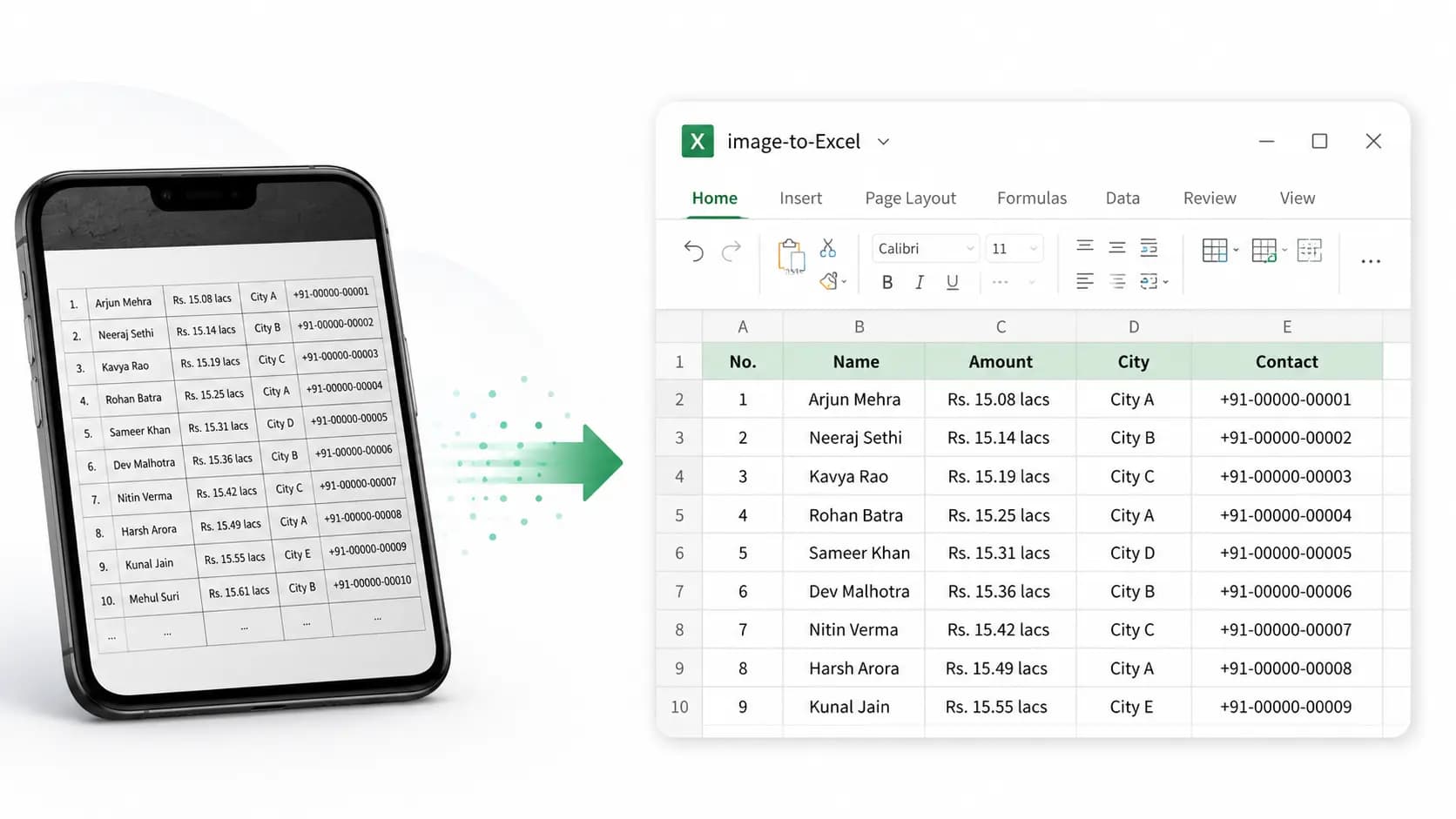
Image to Excel table
Convert Image to Excel Table
See how OCR extracts real rows and columns from photos, screenshots, scanned documents, invoices, and table images.
Read guide
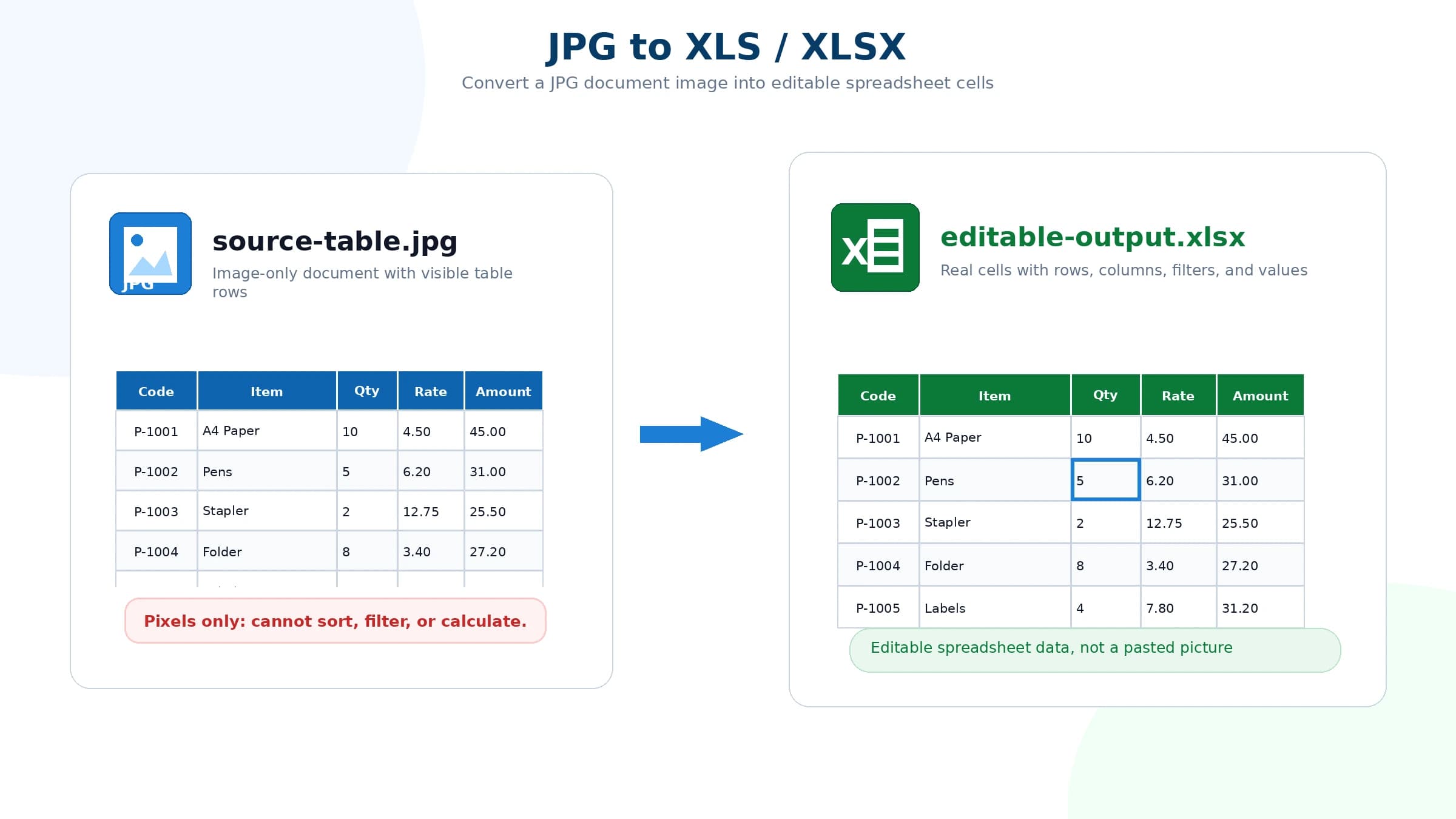
JPG to XLSX
JPG to XLS or XLSX
Understand JPG to XLS, JPG to XLSX, editable spreadsheet output, and how to check whether the result is real cells.
Read guide

Handwriting recognition
Handwriting OCR: Convert Notes to Text
Upload handwritten notes, edit the recognized text, and copy or download a TXT file.
Read guide
JPG to Excel tutorial
How to Convert JPG to Excel
Learn how to upload a JPG table image, preview the extracted cells, and download an editable XLSX or XLS file.
Read guide
Privacy and file handling
Uploaded files are used only to perform OCR conversion and generate spreadsheet output. After the result is generated, the uploaded file is deleted immediately and not retained.