How to Convert JPG to Excel
Follow a practical step-by-step guide to convert a JPG table image into an editable Excel XLSX spreadsheet with OCR, preview checks, and cleanup tips.
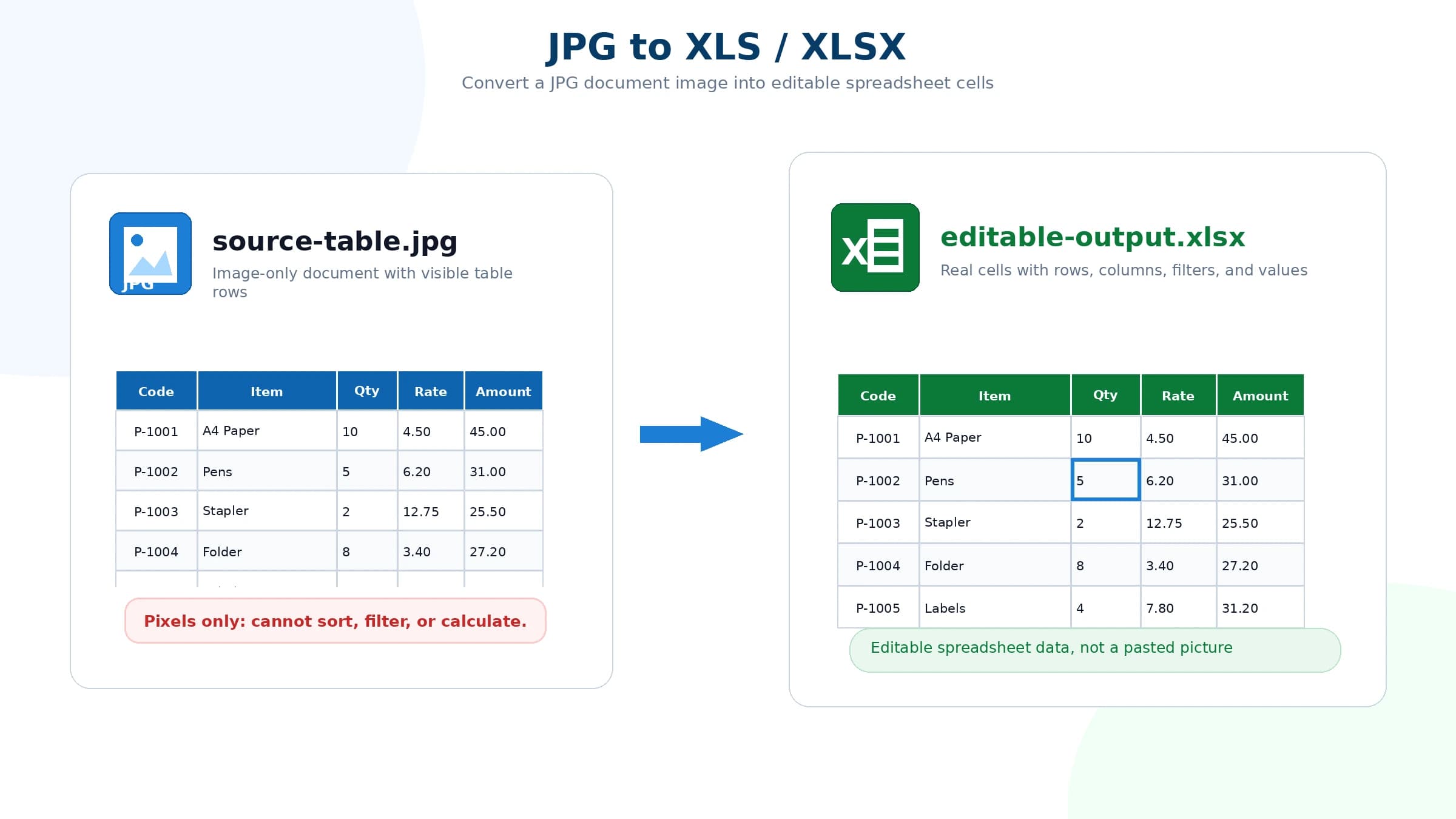
A JPG image can show a table clearly, but Excel cannot edit the table until the text and numbers are extracted from the pixels. If you paste the image into a worksheet, you still have a picture. You cannot sort the rows, filter the columns, copy a clean range, calculate totals, or correct a single cell.
To convert JPG to Excel properly, use OCR. OCR reads the visible text, detects the table layout, and rebuilds the result as an editable XLSX spreadsheet. The workflow below is useful for scanned tables, screenshots, printed reports, invoice line items, inventory sheets, price lists, and other JPG files where the final goal is usable spreadsheet data.
If you are ready to test a file, open the convert JPG to Excel online tool in another tab and follow the steps while checking your own image. If you are seeking a free Nanonets alternative for table OCR without mandatory business email signups, explore our feature and pricing comparison. If you are on macOS and want to extract table data directly from Cmd + Shift + 4 screen captures, read our guide on the best OCR for Mac screenshots and tables.
1. Prepare a clear JPG image
Start with the clearest version of the table. A better image gives OCR more information about characters, row breaks, column spacing, and cell boundaries. If the JPG came from a phone camera, crop the background so the table fills most of the frame. If it came from a scan, use the original scan instead of a compressed preview. If it came from a chat app, ask for the original file when possible.
A good JPG for Excel conversion usually has:
- Straight rows and columns
- Readable headers
- Complete table edges
- Sharp numbers and letters
- No glare across important cells
- Enough resolution to zoom in without losing digits
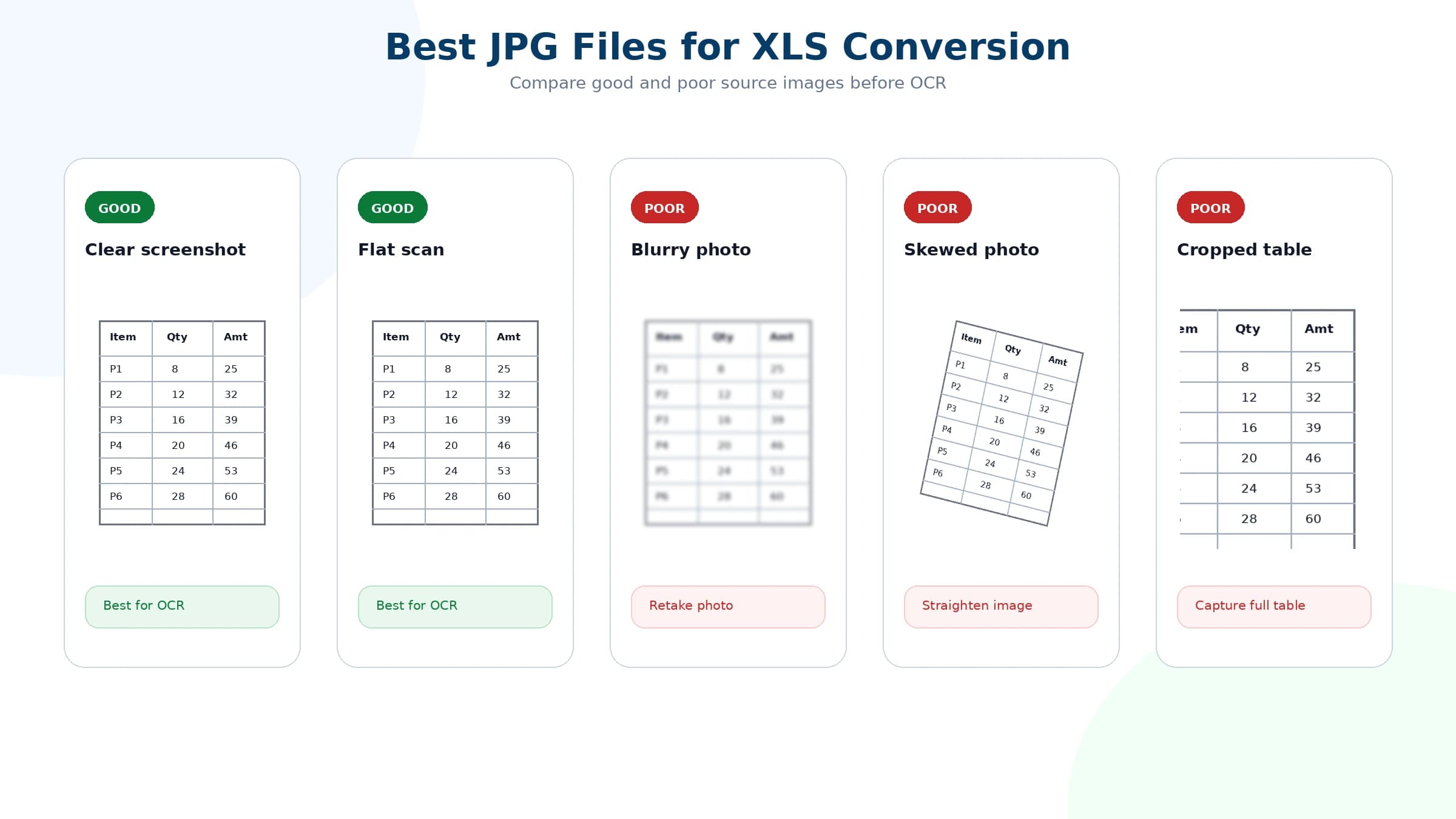
Before uploading, rotate sideways images, crop away irrelevant margins, and avoid cutting through the first row or last total. OCR can often handle imperfect files, but a straight and readable source usually reduces cleanup later.
2. Upload the JPG to the converter
Upload the JPG file to the converter. The file should contain the table you want to extract, not a full desktop screenshot with a tiny table in the corner. If the table is only a small part of the image, crop it first so the OCR process can focus on the data.
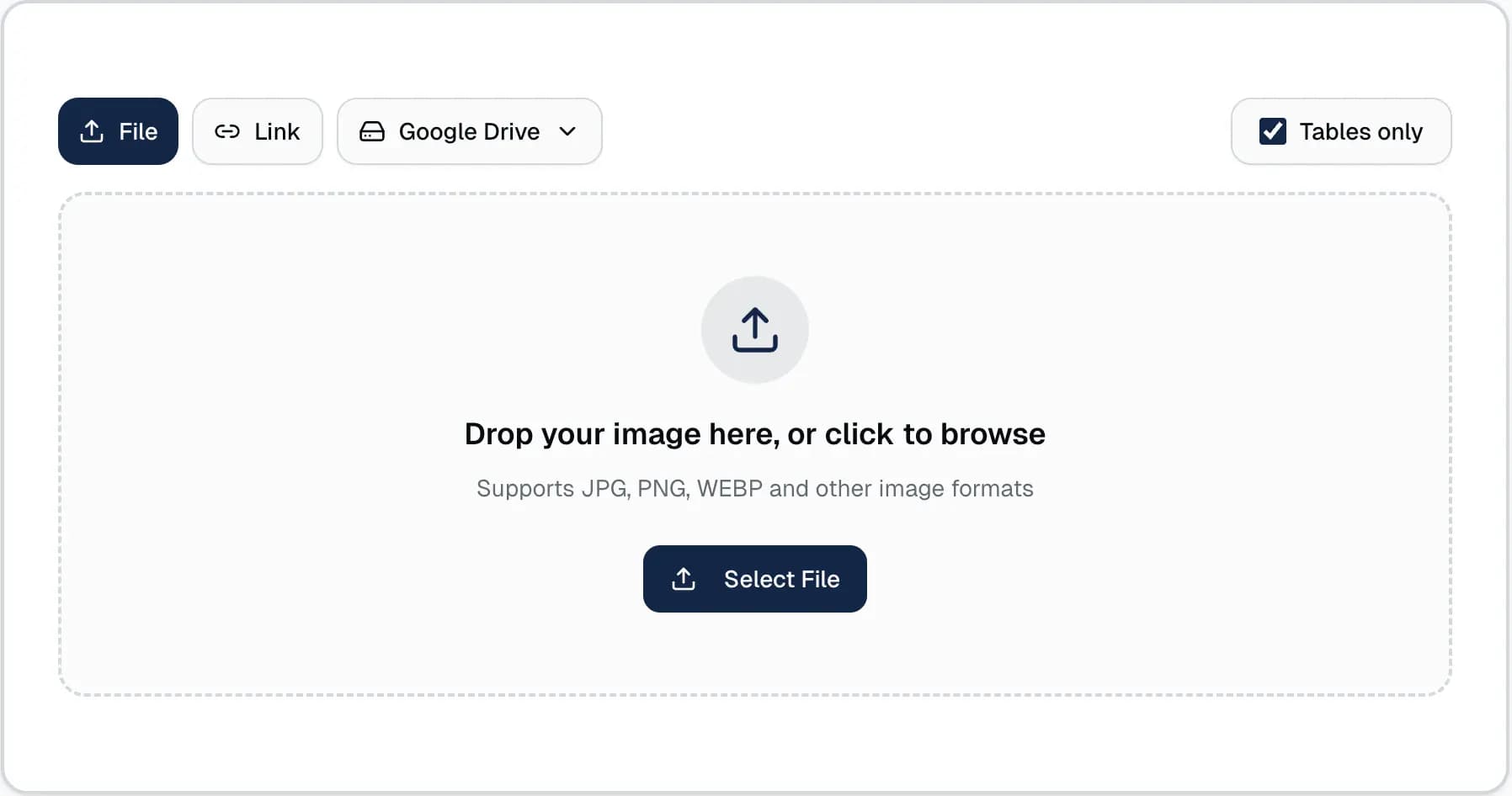
Do not worry if the source is technically a JPEG file instead of a JPG file. JPG and JPEG are closely related image formats, and the same OCR workflow applies. The important part is whether the table is readable enough to extract.
3. Let OCR detect rows and columns
After upload, OCR analyzes the image. For JPG to Excel conversion, text recognition is only half of the job. The converter also needs to understand which values belong in the same row, which values sit under each header, and where columns begin and end.
That structure is what makes the output useful in Excel. A plain list of recognized text may still force you to rebuild the spreadsheet by hand. A table-aware result should preserve headers, line items, quantities, prices, dates, IDs, totals, and blank cells as clearly as the source allows.
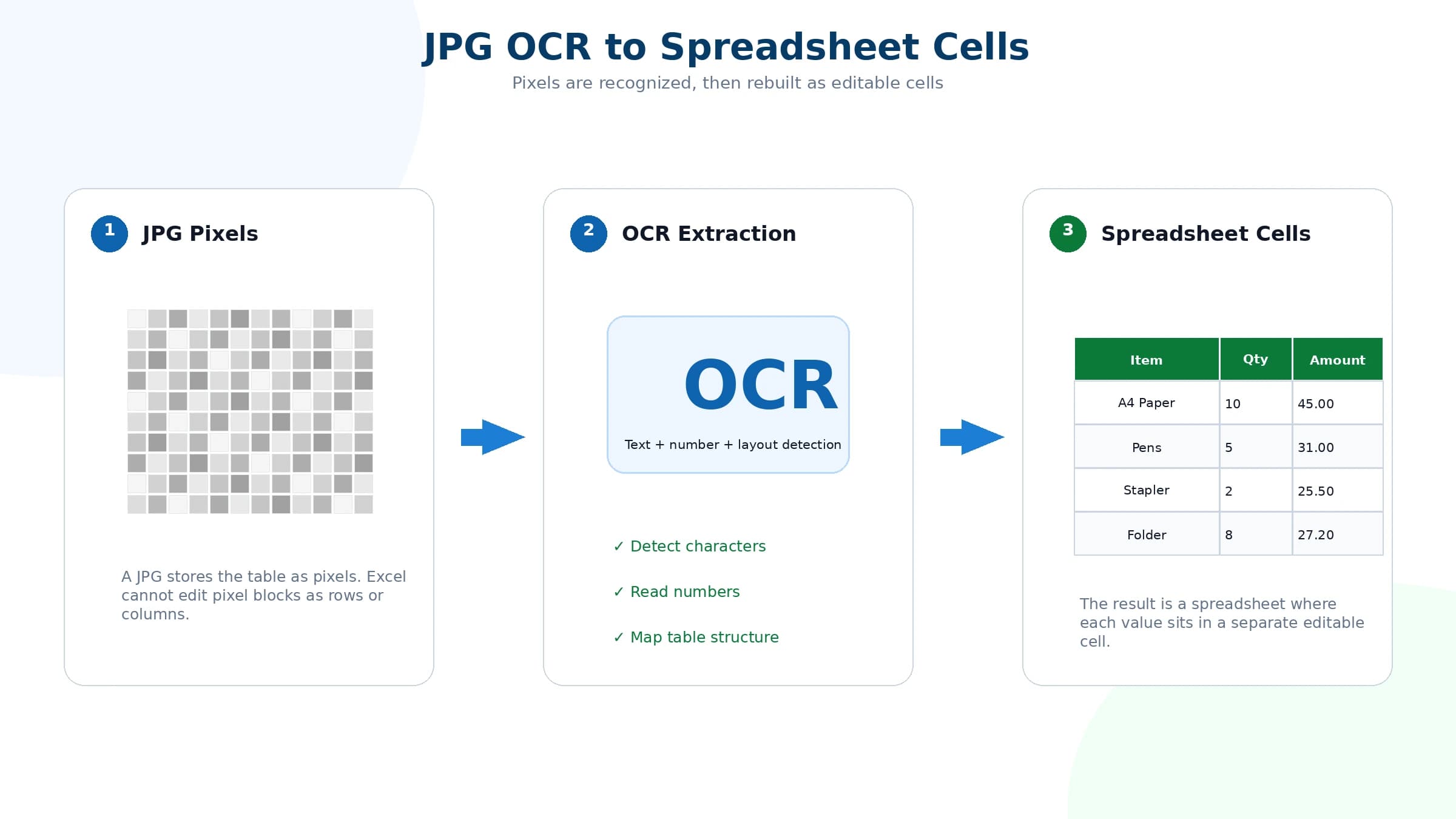
If your main challenge is table structure rather than file format, the extract tables from images page explains row and column detection in more detail.
4. Preview the extracted table
Previewing is the most important quality step. OCR saves typing time, but the output should still be reviewed before you use it for accounting, inventory, reporting, billing, or operations.
Check these items before downloading:
- Headers are present and not shifted
- Each value is under the correct column
- Decimal points and currency symbols were read correctly
- Dates and IDs did not lose characters
- Totals and subtotals match the source image
- Wrapped descriptions stayed in the correct row
- No table edge was cropped off
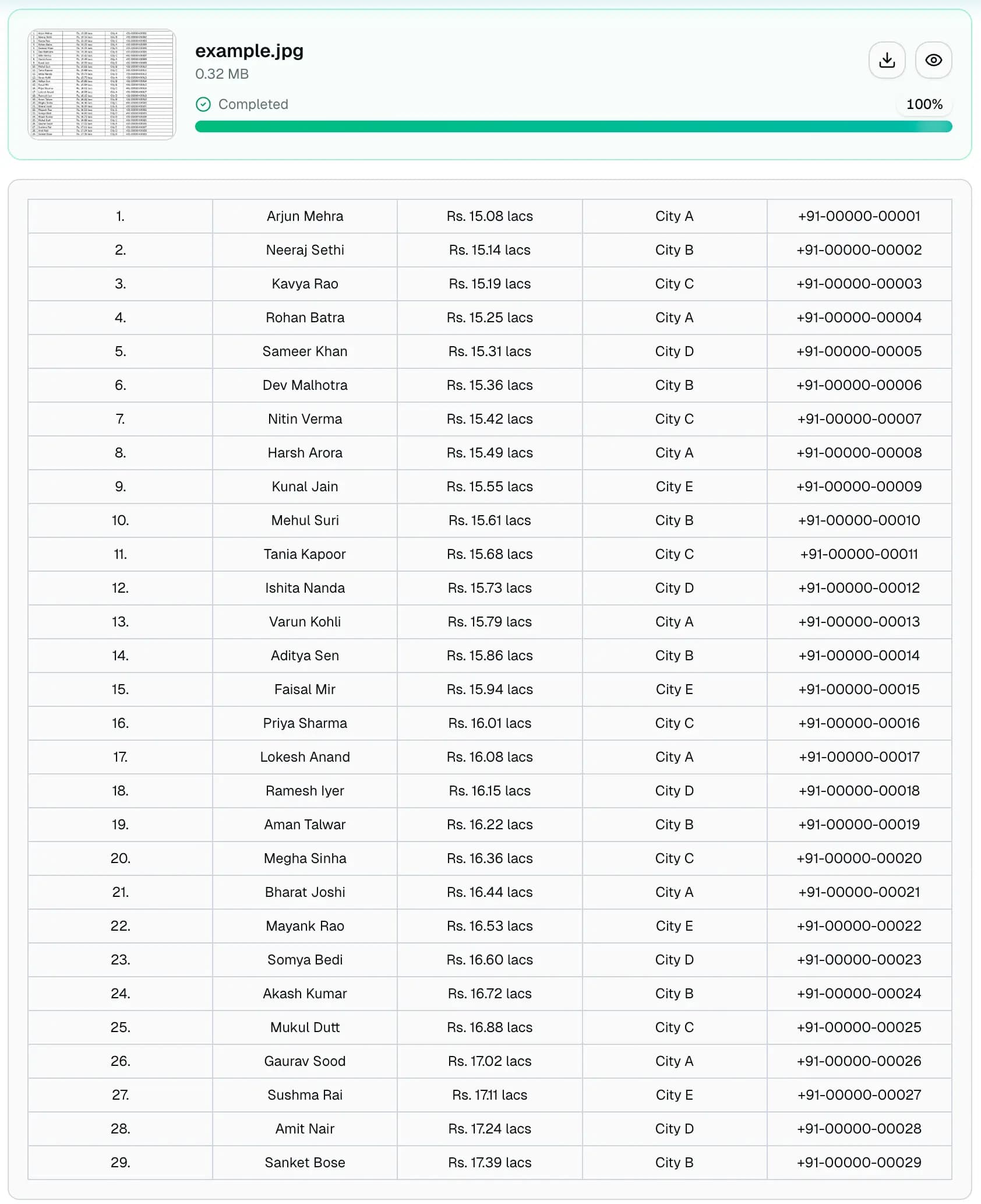
If a column is misaligned, look back at the JPG. Common causes include faint grid lines, tilted photos, narrow spacing, multi-row headers, merged cells, or a crop that removed the leftmost labels.
5. Download the Excel XLSX file
Once the preview looks reasonable, download the result as an Excel XLSX file. Open it in Microsoft Excel, Google Sheets, Apple Numbers, LibreOffice, or another compatible spreadsheet tool.
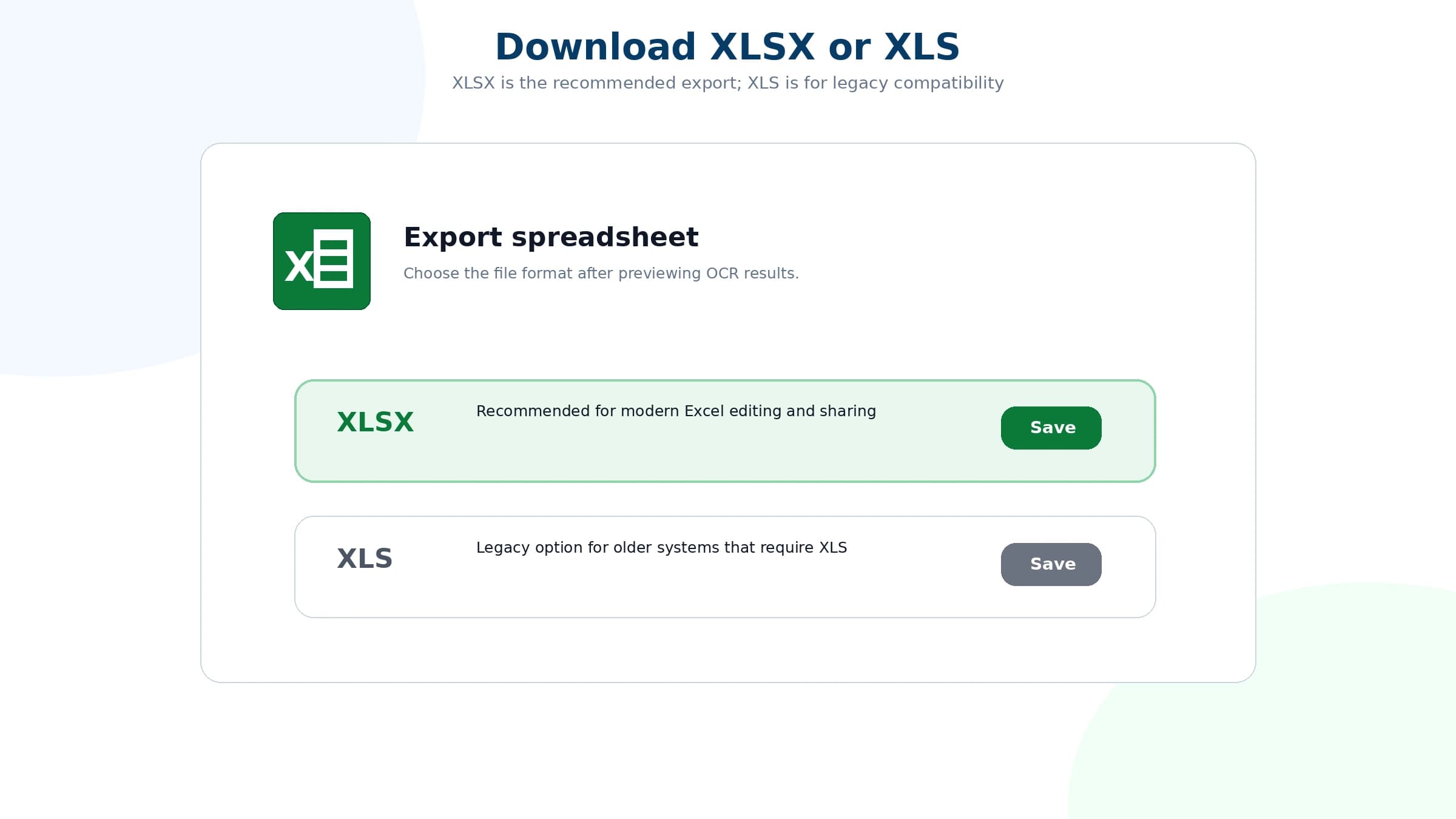
A proper conversion should let you click individual cells, edit values, select columns, sort rows, apply filters, adjust widths, and add formulas. If the worksheet only contains one large picture, the JPG was inserted into Excel instead of being converted with OCR.
For format details, read the JPG to XLS or XLSX guide.
6. Review and clean the spreadsheet
Treat the downloaded spreadsheet as a strong first draft. For casual use, the file may be ready after a quick scan. For business records, review the high-risk cells carefully.
Numbers, decimals, and currency
Financial tables depend on exact characters. Check decimal points, thousands separators, negative signs, percentage symbols, currency symbols, and total rows. A small OCR mistake can change the meaning of a price or balance.
Dates, IDs, and product codes
Dates and IDs can be visually similar. Review codes that contain O and 0, I and 1, S and 5, or long strings of digits. These values often matter more than normal words because a single character can break a lookup or reconciliation.
Column alignment
Scan rows with long descriptions, merged-looking cells, blank cells, and wrapped text. These are the rows most likely to shift into the wrong column after OCR.
Tips for difficult JPG files
If the JPG is blurry
Use a higher-resolution image, retake the photo closer to the table, or capture a direct screenshot instead of using a compressed copy. If people cannot read the small numbers comfortably, OCR will also struggle.
If the table is tilted
Rotate or retake the image so rows are horizontal. Perspective distortion makes one side of the table narrower than the other, which can confuse column detection.
If the image came from chat
Messaging apps often compress images. Ask for the original file or a document upload, not a screenshot of a chat preview. Crop out the chat interface before converting.
If the table has no borders
Borderless tables can still work, but spacing must be clear. Review the preview closely because OCR has fewer visual clues for deciding where one column ends and the next begins.
FAQ
Can I convert a JPG to editable Excel?
Yes. If the JPG contains readable table data, OCR can extract the visible text, numbers, rows, and columns into an editable Excel XLSX file.
Is converting JPG to Excel different from inserting a JPG into Excel?
Yes. Inserting a JPG only places a picture inside a worksheet. OCR conversion turns the visible table data into real spreadsheet cells that you can edit, filter, sort, and calculate.
Does JPG to Excel conversion work with scanned tables?
Yes, scanned tables can work well when the scan is straight, clear, high resolution, and not cropped through the header row or table edges.
What should I check after downloading the Excel file?
Review column alignment, headers, dates, decimal points, currency values, totals, IDs, and any row with wrapped text or merged-looking cells.
Why are columns misaligned after OCR?
Columns can shift when the JPG is tilted, blurry, compressed, tightly cropped, missing grid lines, or built with merged cells and multi-line headers.
Can I use a phone photo instead of a scanned JPG?
Yes. A phone photo can be converted if the table is sharp, flat, well lit, and fully visible. For camera-specific tips, use the photo to Excel workflow.
Will the converter recover formulas from the JPG?
No. A JPG stores pixels, not spreadsheet formulas. OCR can extract visible values and table structure, but formulas need to be rebuilt in Excel after conversion.
Is a JPG screenshot good enough for Excel OCR?
Often yes. Screenshots can work very well when the original text is sharp and the table is not zoomed out too far. Avoid screenshots of compressed chat previews.
Convert your JPG table to Excel
Upload a clear JPG, let OCR extract the visible rows and columns, preview the result, and download an editable XLSX spreadsheet for cleanup in Excel or Google Sheets.