Invoice OCR: Convert Invoice Images to Excel
Upload an invoice photo or scan, preview the recognized table, and export editable XLSX, XLS or CSV. Check invoice details and totals before using the spreadsheet.
- 1Upload
- 2Convert
- 3Download
JPG, JPEG, PNG, BMP, TIF or TIFF input. Review the OCR result before use. Usage and download limits apply.
Have a PDF invoice? Direct PDF upload is unavailable here. Export each page as an image first, or convert one PDF page at a time to TIFF.
How to convert an invoice to Excel
The practical workflow is upload, recognize, then review. An editable spreadsheet still needs a check against the source.
- Step 1
Upload a readable invoice image
Choose a JPG, JPEG, PNG, BMP, TIF or TIFF. Include the header, complete item table and totals. Keep text upright and remove glare; convert PDF pages to images first.
- Step 2
Extract and preview the table
Run OCR and inspect the spreadsheet preview. Table-only extraction is off by default so header and total text can be included. Check reading order and flag any split or missing rows for correction in Excel after export.
- Step 3
Verify and export to Excel
Match vendor, invoice number, dates, quantity, unit price, tax and total to the original. Export XLSX, XLS or CSV, then organize reviewed values into your preferred columns.
Invoice OCR meaning: from a scan to editable data
Invoice OCR converts visible text in an invoice photo or scan into machine-readable text. Invoice data extraction then associates that text with fields and rows. Recognizing “125.00” alone does not tell you whether it is a unit price, subtotal or balance due.
Use this online invoice OCR tool when you need an editable spreadsheet from a supplier bill, service invoice or photographed item table. The invoice to Excel converter rebuilds recognized content into cells; field names and row structure still need review.
Invoice data extraction to Excel: the fields to check
Keep document-level details separate from item rows. When combining invoices, repeat the source filename, vendor and invoice number beside each reviewed line so every row remains traceable.
| Group | Values to retain | Review check |
|---|---|---|
| Invoice identity | Vendor, invoice number, purchase order, currency | Preserve leading zeros. Use vendor + invoice number to check duplicates. |
| Dates | Issue date and due date | Keep dates separate; resolve ambiguous day/month order from the source. |
| Line items | Description, quantity, unit price, line total | Join wrapped descriptions. Check row count and decimal separators. |
| Adjustments | Discounts, shipping, credits, withholding | Retain the printed sign; avoid treating adjustments as purchased items. |
| Tax and totals | Taxable amount, tax, grand total, amount due | Separate total from balance due. Do not add tax twice if prices include it. |
Dedicated invoice OCR software may return named fields instead of a visual table. Microsoft's invoice extraction documentation describes invoice-specific fields and line items in JSON; Amazon Textract's invoice documentation distinguishes values such as total, amount due and amount paid. Check the output contract when choosing a tool.
Worked example: catch an error that changes the total
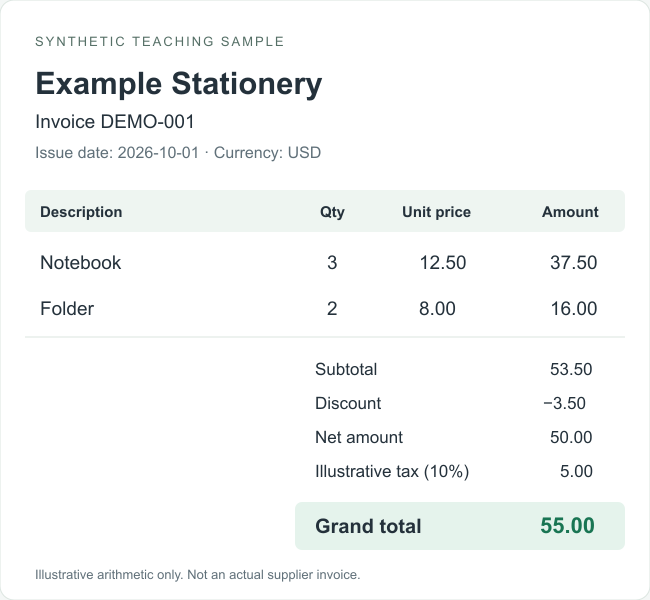
This original teaching sample shows why editable output needs a review step. It contains two item rows and a discount. All figures below are manually authored reference values, not measured OCR results.

Reference calculation
- 3 × 12.50 + 2 × 8.00 = 53.50 subtotal.
- 53.50 − 3.50 discount = 50.00 net amount.
- 50.00 + 5.00 illustrative tax = 55.00 total.
- Two purchased-item rows; discount and tax remain separate.
Hypothetical recognition error
If “12.50” becomes “1250”, the notebook line changes from 37.50 to 3,750.00. A subtotal check catches the mismatch. Even when the total matches, compare descriptions, quantities and every row; two errors can cancel each other.
PDF invoice to Excel: prepare the pages first
For an invoice PDF to Excel workflow, first check whether the PDF contains selectable text or scanned images. This page accepts image files only, so either type needs a page image before upload.
- Export each relevant PDF page as PNG or JPG in your PDF viewer. Keep small text readable.
- Alternatively, use PDF to TIFF with a single page selected for each export. This avoids depending on multi-page TIFF handling.
- Recognize each page and keep the same invoice identifier with its source page number. Check that no continuation rows are lost.
- Combine reviewed rows in Excel. Remove repeated column headings and keep the invoice total once in a summary, rather than summing it on every page.
PDF conversion is a preparation step, not automatic invoice parsing. If you need direct multi-page PDF extraction with a fixed field schema, compare dedicated invoice processing services.
GST invoice to Excel: preserve identifiers and tax columns
For invoice OCR in India, keep the printed GSTIN, invoice identity, HSN/SAC, taxable values and separate CGST, SGST or IGST amounts visible. CBIC's official Rule 46 reference explains tax-invoice particulars; use it to understand the source fields.
- Store identifiers as text so leading zeros and long numbers survive export.
- Retain the tax labels as printed; do not infer a tax split from the final total.
- Check each rate and amount against the original before combining supplier invoices.
If you need a free GST invoice to Excel converter, test a readable image within the current allowance. This tool produces a reviewable draft; it does not verify GSTIN registration, determine tax eligibility or create a filing-ready return.
Get a usable invoice spreadsheet on the first review
Before upload
Photograph the full page on a flat surface. Avoid glare, rotation and clipped totals. Retake blurred text instead of sharpening unreadable characters.
In the preview
Look for O/0 and I/1 errors, shifted prices, wrapped descriptions, missing rows and commas read as decimals. Recheck negative amounts and credit notes.
After export
Open XLSX for editable cells or CSV for a plain table. Set identifier columns to text and numeric columns deliberately. Keep the original beside the reviewed file.
For multiple invoice images, see batch image OCR and check the available batch allowance. Review each invoice before merging its rows. Read the privacy policy before uploading personal, bank or payment information.
Choosing invoice OCR software or an AI extraction workflow
The best invoice OCR software depends on the output you need. A browser converter suits occasional image-to-spreadsheet work. An invoice API suits programs that need named fields. A full accounts-payable system adds approval routing and accounting integrations.
Evaluate the best OCR model for invoices on your documents
Use the same reference set for every candidate: different vendors, layouts, currencies, image quality and multi-page invoices. Record exact matches for invoice ID, currency and total separately from missing item rows and correction time.
Useful comparison: cost per accepted invoice = (processing charges + review labor + allocated setup cost) ÷ number of approved invoices. A low API price can be outweighed by time spent correcting rows.
Automated invoice data extraction using LLM and OCR
A typical pipeline reads text and layout, maps values into a schema, validates required fields, then sends uncertain records for review. An LLM can help interpret varied labels, but validation must distinguish printed facts from inferred values. The Microsoft invoice model and Textract expense analysis document dedicated extraction interfaces. This site provides a browser tool, without a documented public invoice API or unattended accounting integration.
Free invoice OCR review template: make every row traceable
Download our original plain-text worksheet and use it beside Excel. It includes document identity, line-item columns, a totals reconciliation, exception notes and a comparison log. Record your own checked reference values before testing tools.
One invoice, one review record
- Source filename, page number, vendor, invoice ID and currency.
- One reviewed row per item; separate discount, shipping and tax entries.
- Expected versus recognized values, corrections, elapsed review time and reviewer.
- An acceptance decision with unresolved issues preserved.
Frequently asked questions
What is invoice OCR?
Invoice OCR means optical character recognition applied to invoices. It turns visible text in a photo or scan into digital text. Invoice data extraction adds structure, such as vendor, invoice number and line items. This converter creates an editable spreadsheet draft for review.
What is the best way to convert an invoice image to a usable Excel file?
Use a clear, complete image, extract the table with OCR, compare every item and total with the source, and export XLSX. Keep invoice identifiers beside the reviewed rows when combining invoices. A pasted invoice picture is not an editable Excel table.
Can I convert a PDF invoice to Excel here?
Indirectly. This converter accepts images, not PDFs. Export each invoice PDF page as PNG or JPG, or use our PDF to TIFF tool with one page selected at a time. Upload the resulting images, keep all pages under the same invoice ID, and remove repeated headers before combining rows.
Is there a free invoice to Excel converter?
You can try this invoice to Excel converter within the site's available free allowance. Account, credit and download limits may apply; consult the tool and pricing page for current requirements. The downloadable invoice review template and illustrative sample on this page are free.
Can I use this as a GST invoice to Excel converter?
You can recognize a readable GST invoice image and review its spreadsheet draft. Check GSTIN, invoice number, date, HSN or SAC, taxable values and each printed tax amount against the source. This tool does not validate GST registration, generate a filing-ready return or establish tax compliance.
What is the best OCR model for invoices?
Choose using a representative invoice set with manually checked reference values. Compare invoice-number and total errors, missing line items, correction time, supported languages and cost per accepted invoice. We have not run a controlled comparison that establishes a best model. Dedicated invoice APIs expose named fields; this page provides a browser spreadsheet workflow.
How do LLMs and OCR automate invoice data extraction?
A typical workflow reads the document with OCR, maps text into a defined schema, checks values and totals, then exports approved records. An LLM may help interpret labels and layouts, but unclear or absent values should remain flagged for review. This website does not offer a documented public invoice API or unattended accounting workflow.
Can I automate invoice data copying to Excel in one minute?
A clear single-page invoice may need little correction, but processing and review time vary with layout, image quality and item count. There is no one-minute guarantee. Time the complete workflow, including corrections and export, on your own invoices before planning a batch.
Does this invoice OCR app work on a phone?
This is a browser-based invoice OCR tool for modern phones and computers; no separate app installation is required. Take a flat, well-lit photo with all text visible. Recognition runs on a server and needs an internet connection. Read the privacy policy before uploading sensitive information.
Can invoice OCR export named accounting fields automatically?
This converter reconstructs recognized content into spreadsheet cells. It does not guarantee a fixed vendor, invoice number, date or tax schema, or a direct QuickBooks or Xero import. Use the review template to organize checked values; evaluate a dedicated invoice extraction API if you need automatic field mapping.
Turn your invoice into editable cells
Start with one readable invoice image. Review the preview, export the file, and keep the source for checking.
Open invoice to Excel converter